After the exam
Results the same day,
and what they mean.
Assessment Phase brings together results and written-answer marking. Automatic marks and teacher marks stay in separate ledgers, with unfinished marking shown as pending.
Reading the results
Start with the class. Then look closer.
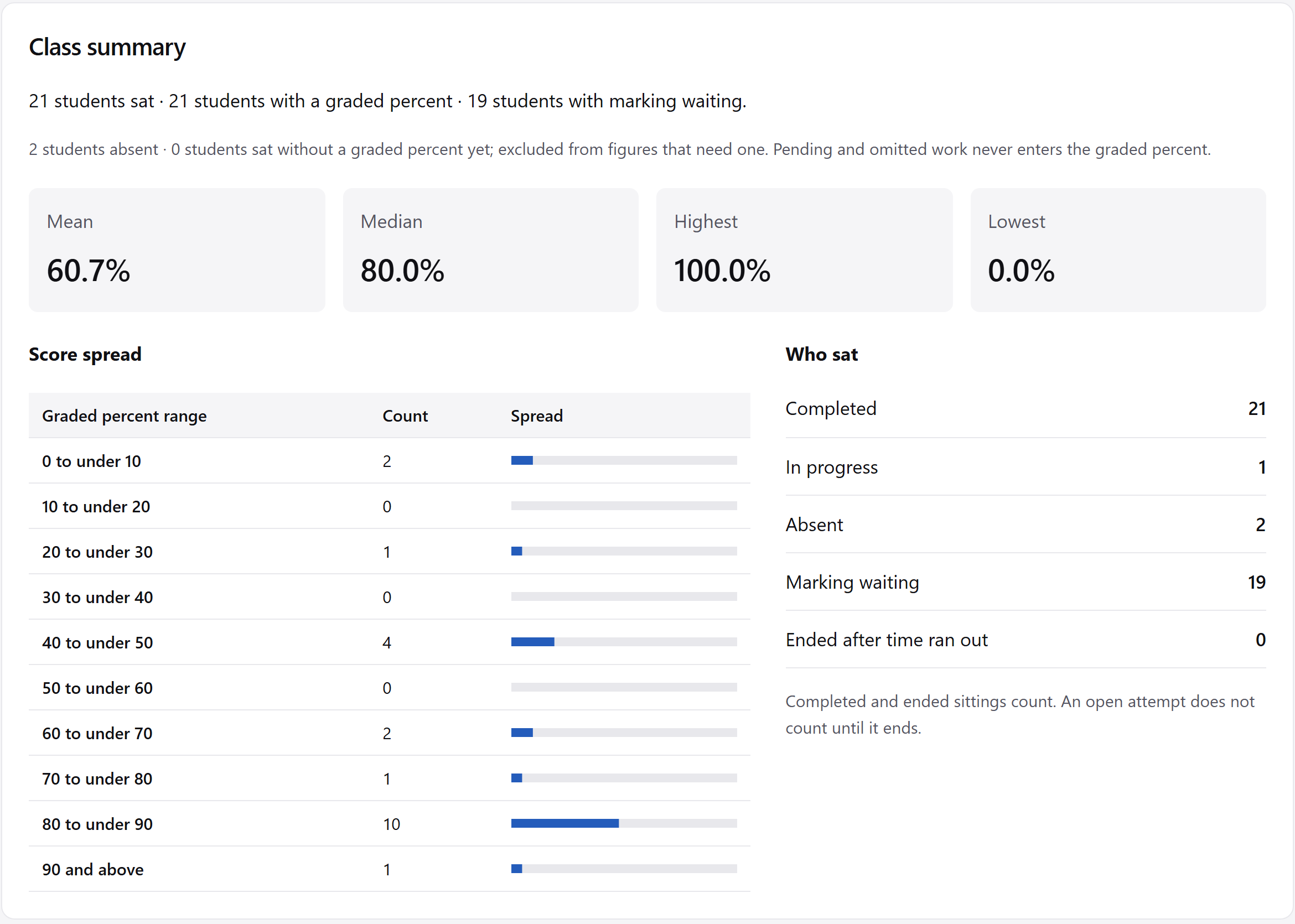
Class summary shows participation and the spread of results. Questions brings the common wrong answers and marking still waiting into view. Class percentages are shown when at least five students contribute.
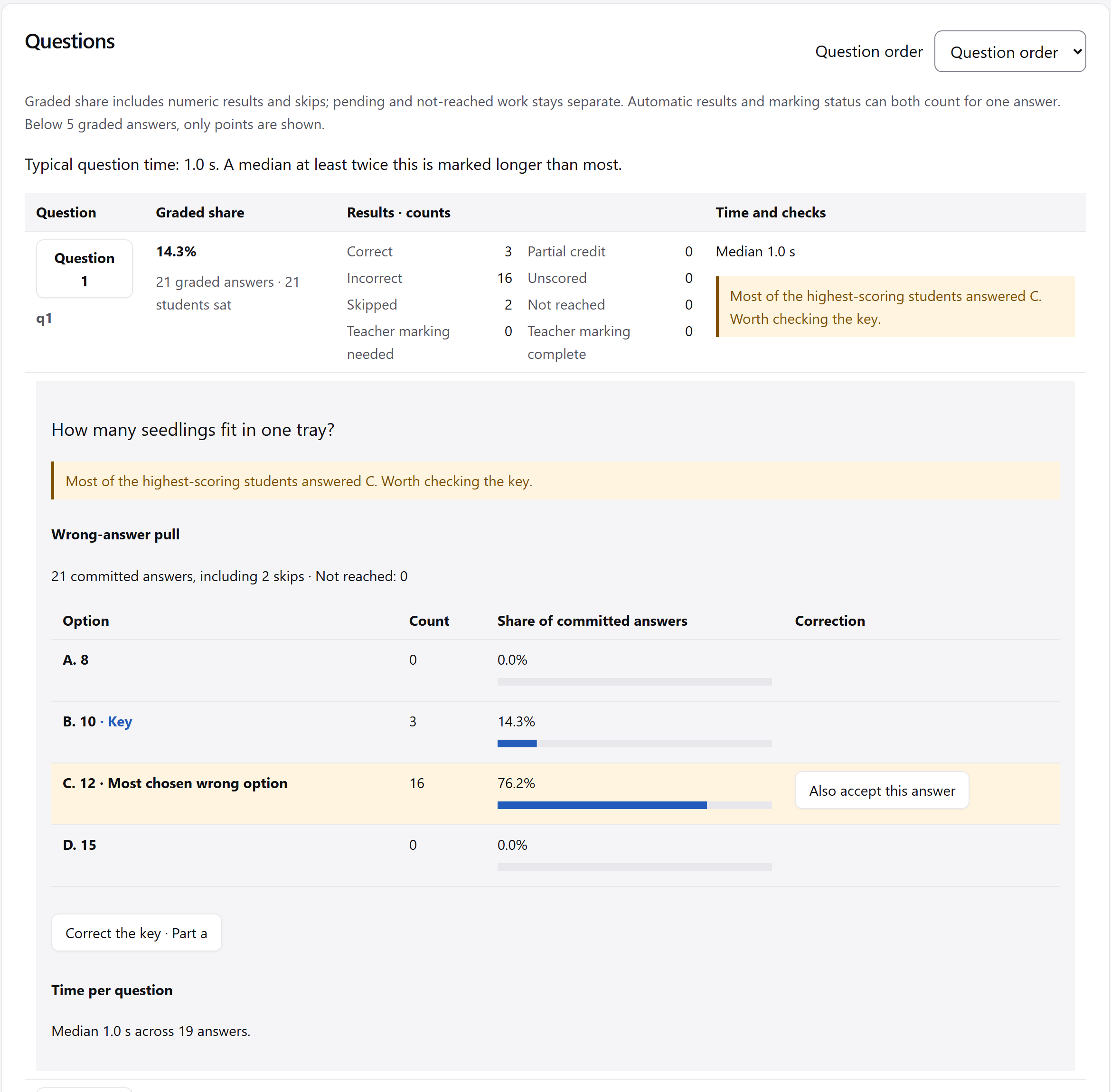
Questions
Read the question behind the result.
Look through the question results to find work that needs a closer look. Read the common wrong answers alongside the marking still waiting.
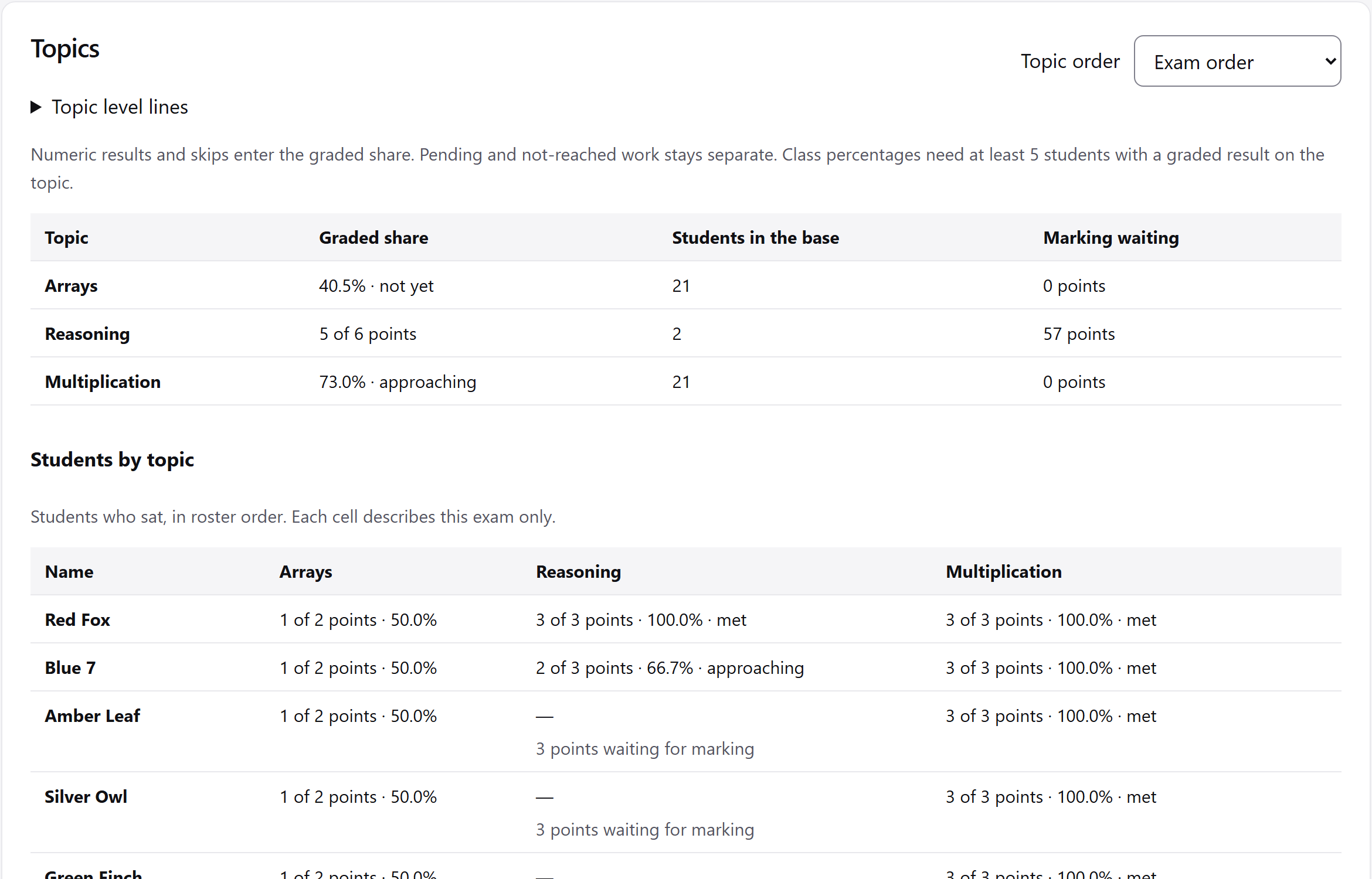
Topics
See the topics in the answers.
Topics groups answers by the exam’s tags and shows each student’s topic cells. The levels met, approaching and not yet describe answers on this exam; choose their boundaries in Topic level lines. The points remain in view.
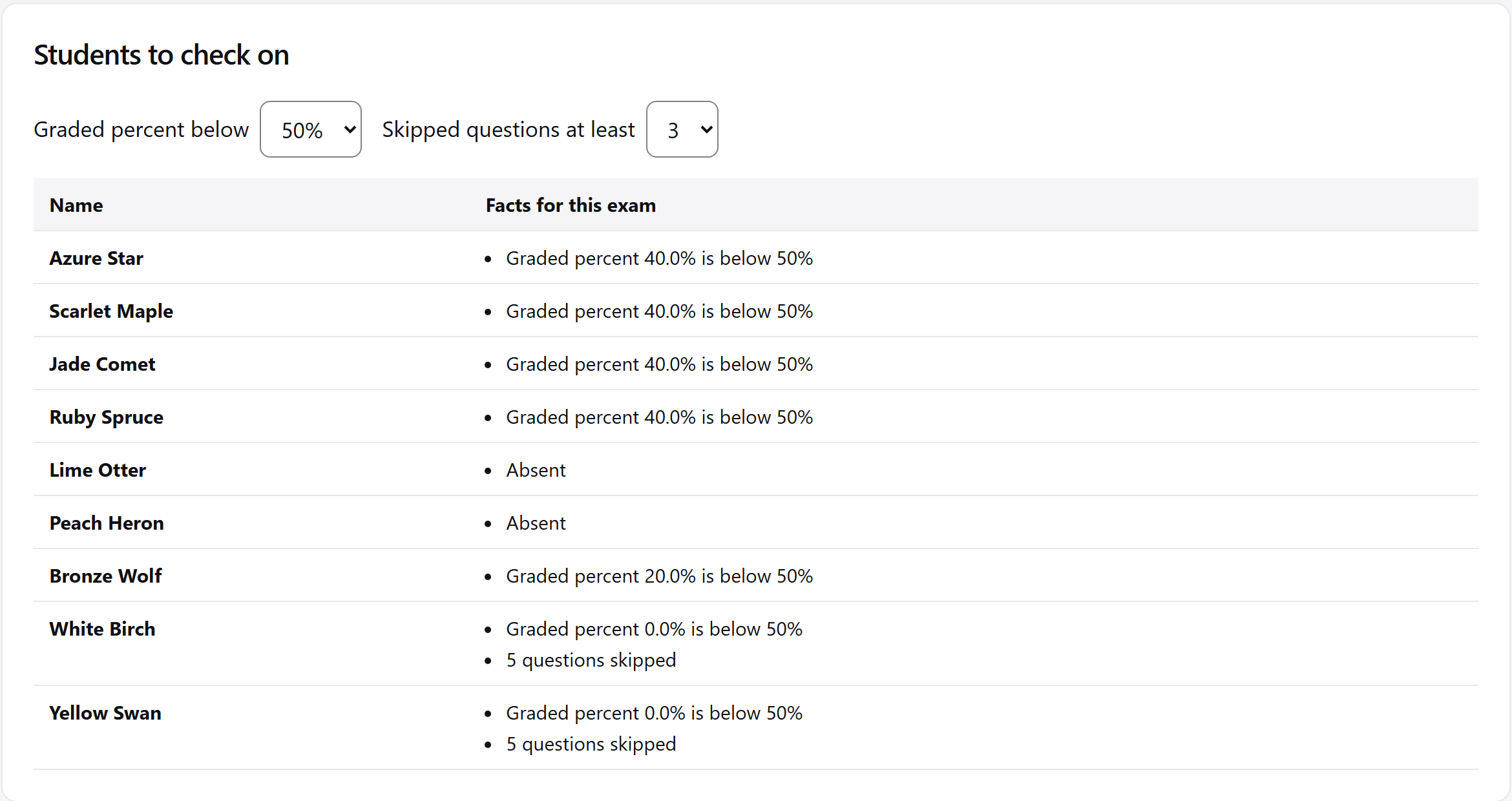
Your next lesson
Choose what to follow up.
Read suggested reteach groups and Students to check on. Choose the check-on cut-offs for this browser; the list gives exam facts for you to review.
Student detail
Read one student’s work.
Open Students to read a student’s work across the class’s exams. Each exam’s topic results give you work to look at with that student.
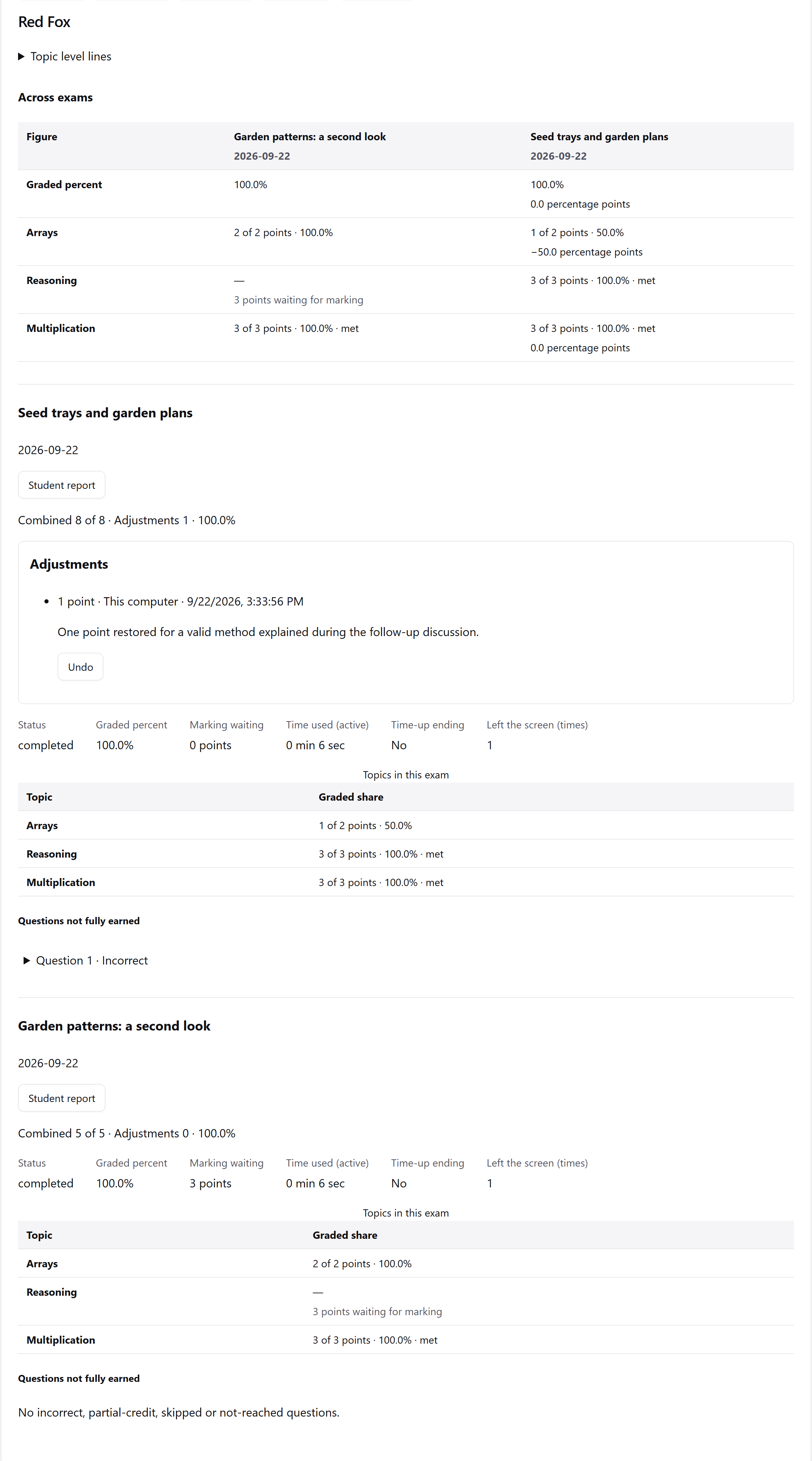
Across exams
Compare the work over time.
In Over time, read each exam separately or compare shared topics and the same students across selected exams. Each paper keeps its own score.
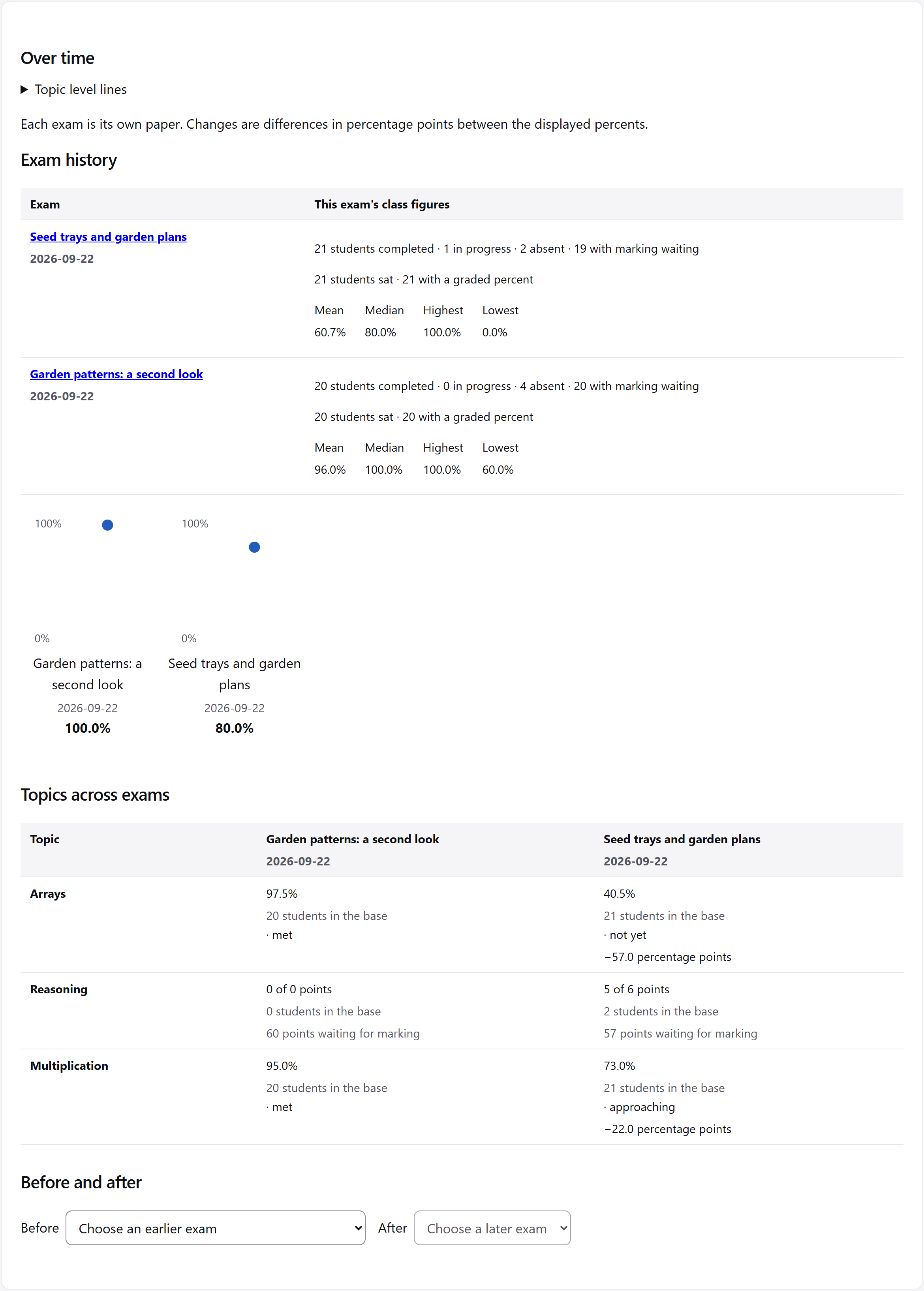
The points
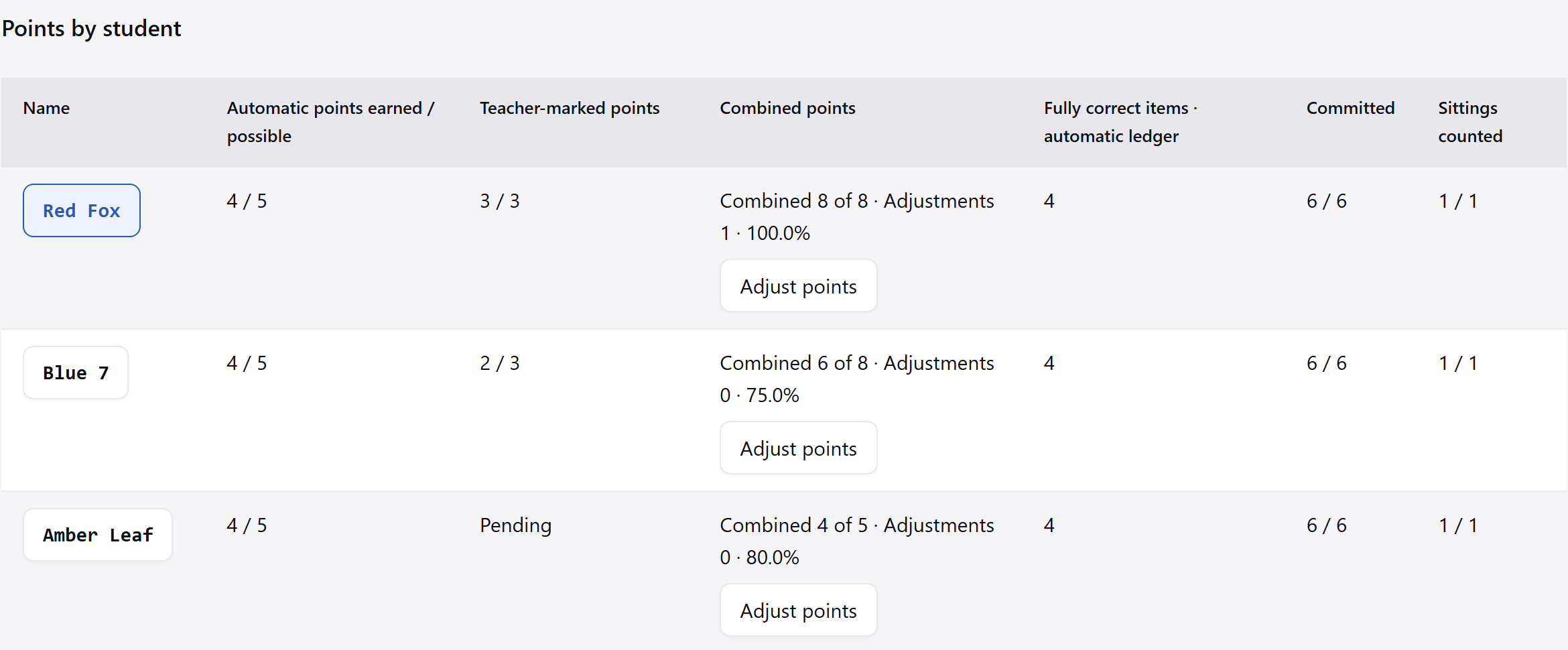
Automatic marks. Teacher judgement.
Automatic points and teacher-marked points stay separate. A written answer waiting for a mark appears as pending. Questions keep the paper’s numbering, even when students saw different orders.
See what the total is made of.
When a question could not be digitised, its points are recorded as omitted. Results show the paper total, the digitised total and the gap between them.
Written answers
Choose a level, or enter the points.
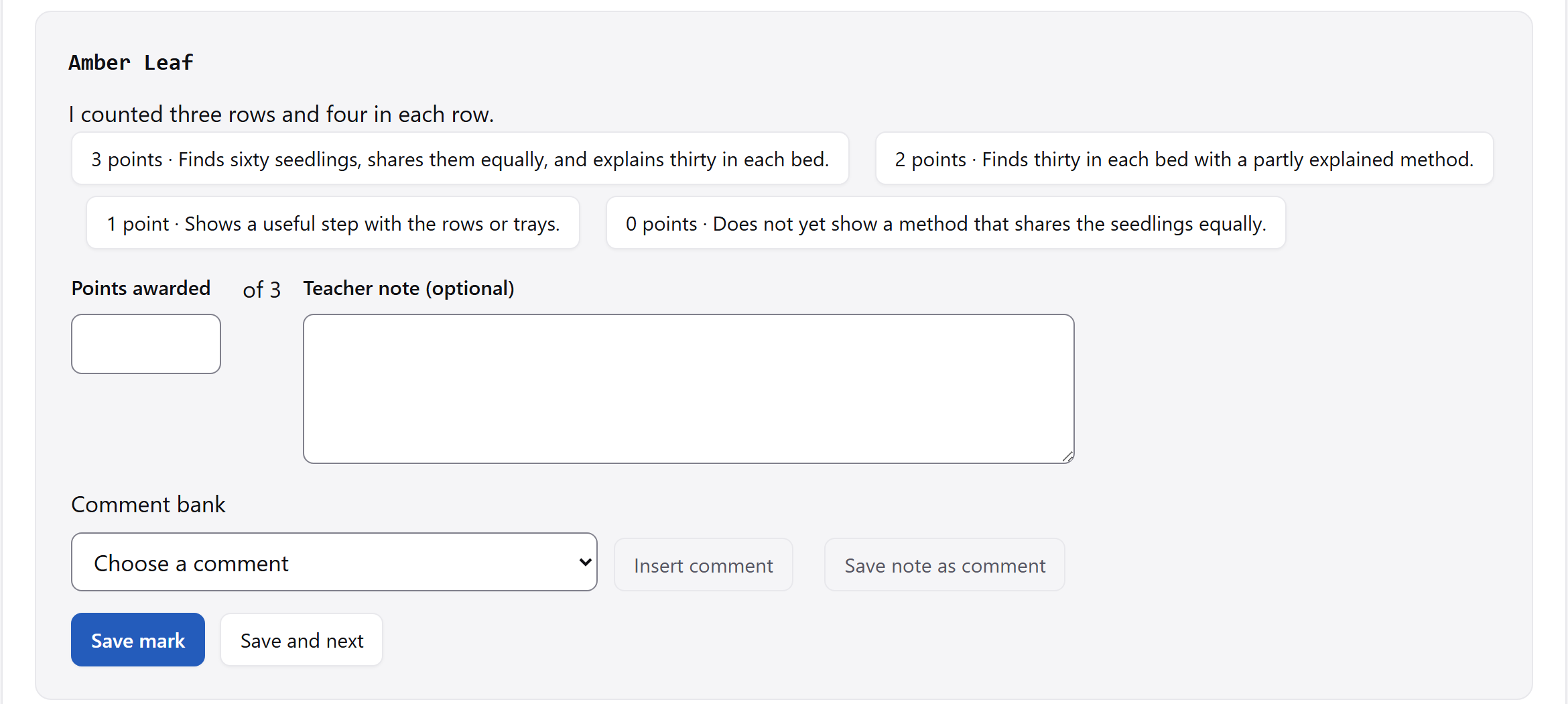
Mark written answers with a rubric level when the question has one, or enter the allowed points yourself, including zero and up to two decimal places. Add a note and save; marking history keeps earlier marks.
Marking tools
Keep useful comments to hand.
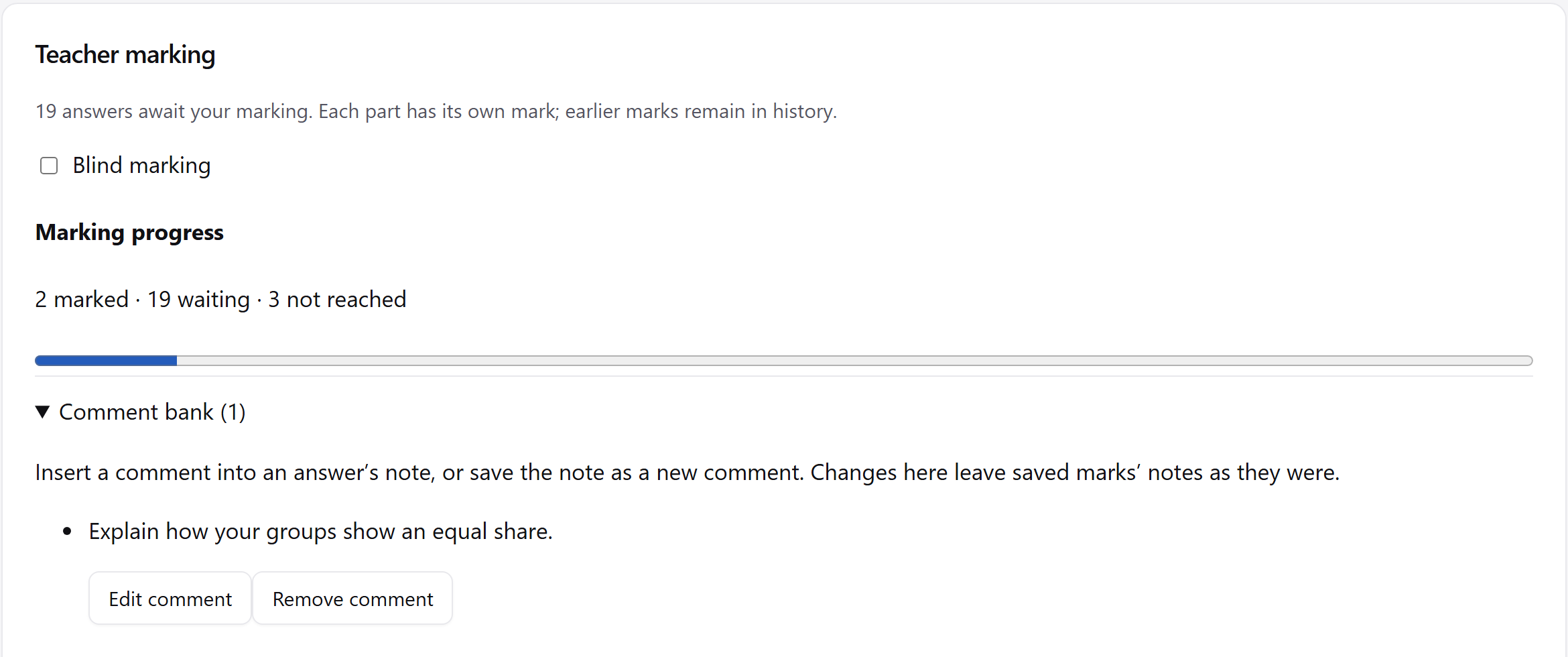
Comment bank keeps comments to use again. Blind marking hides names while you mark.
Reports
A report for the class and each student.
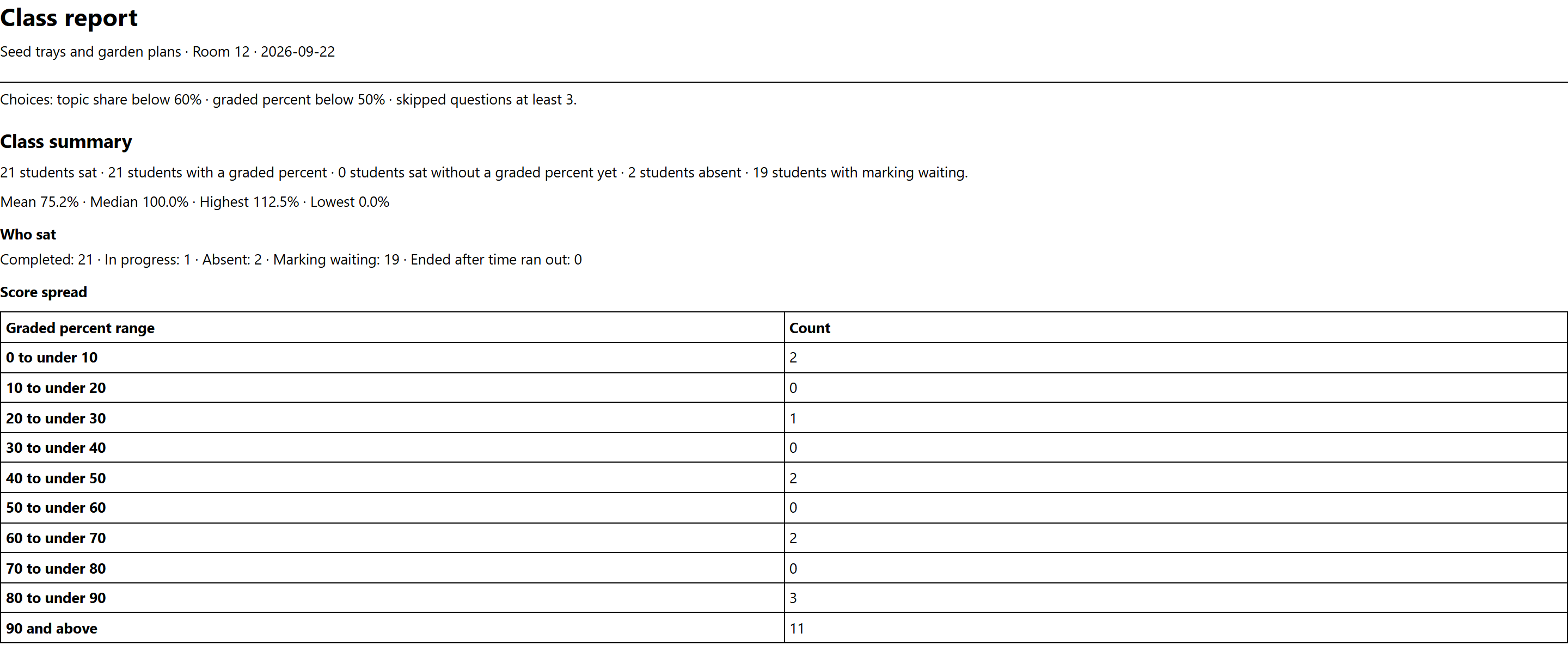
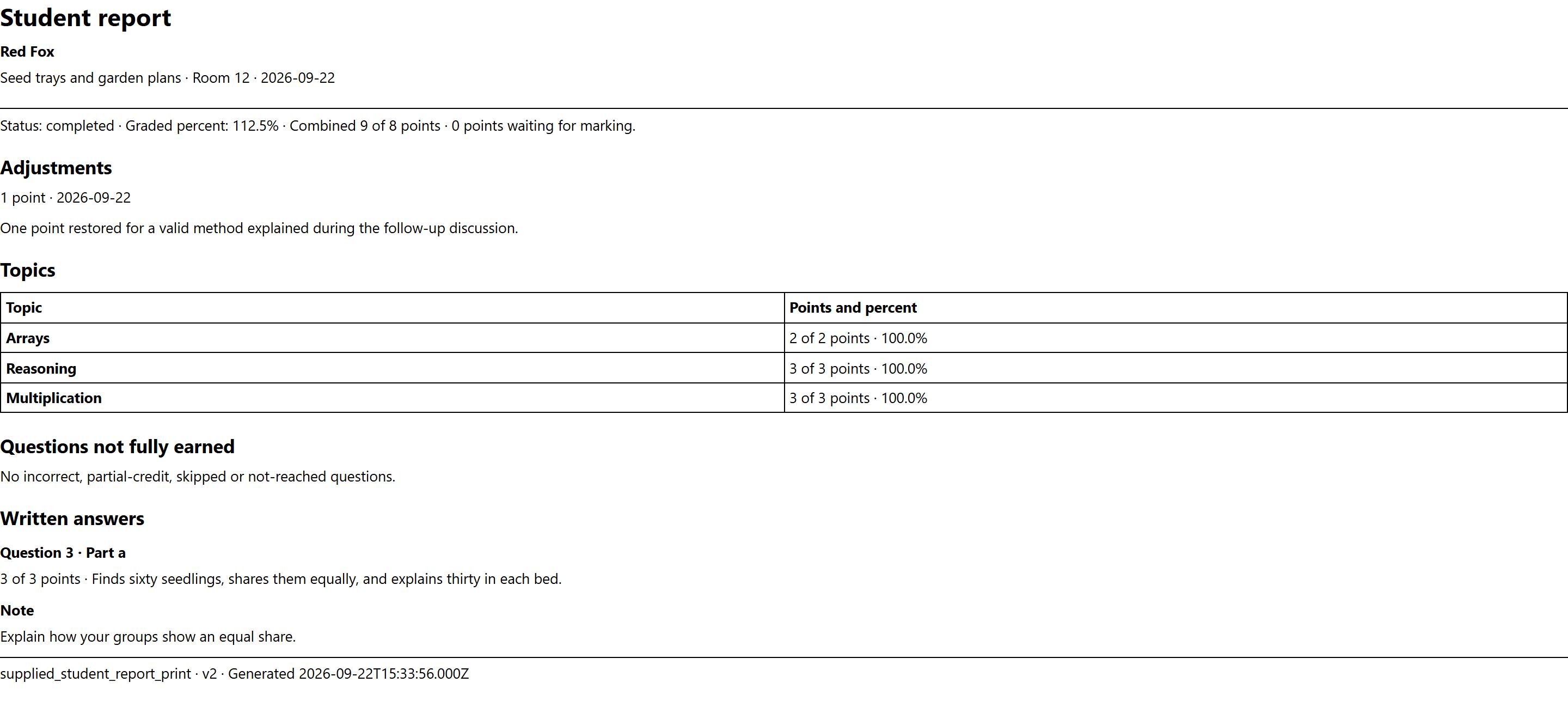
Print a Class report with the exam’s summary and questions. Print a Student report with one student’s points, written work and notes.
Take the files you need.
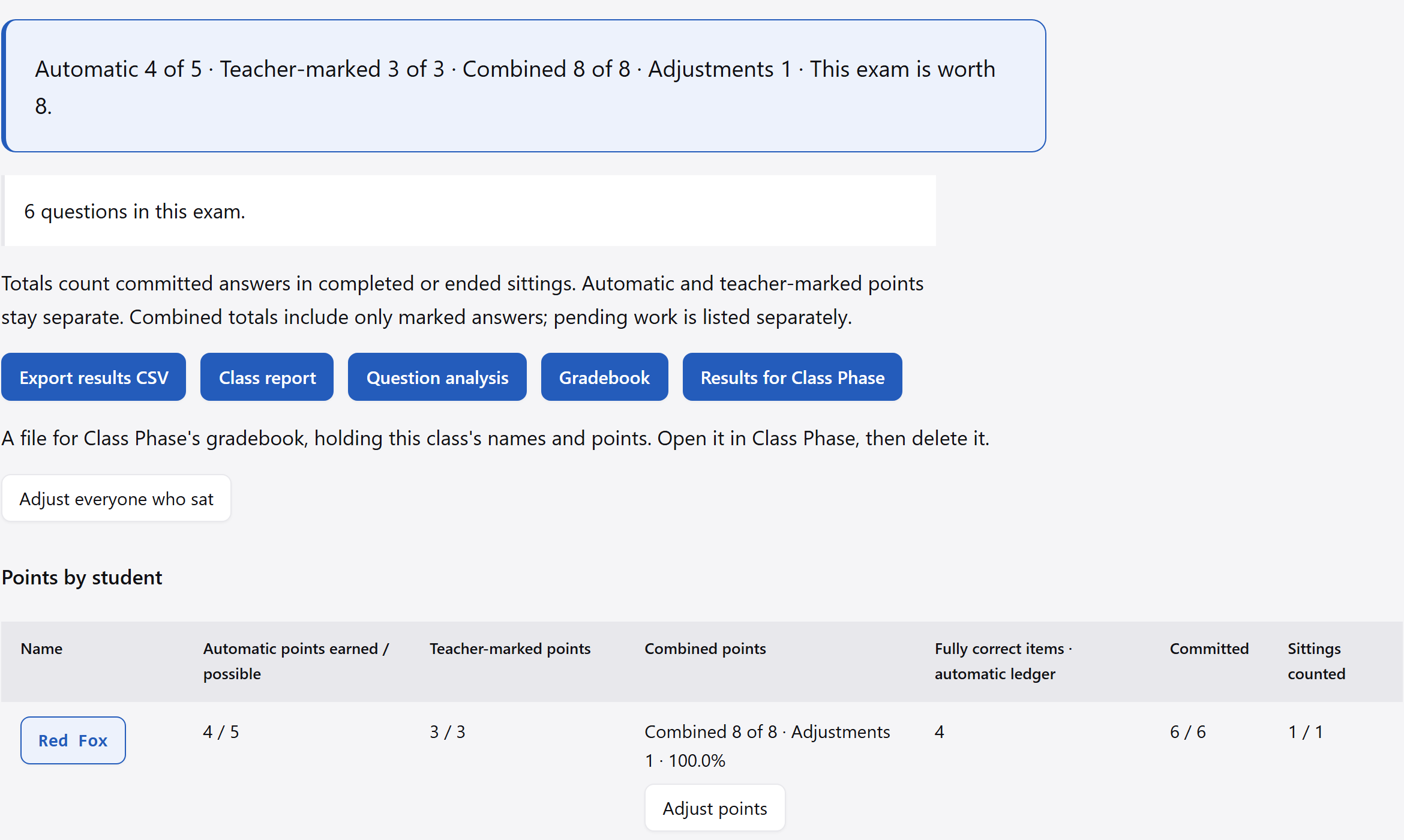
Question analysis downloads a CSV with one row per question. Gradebook puts the class’s exams beside one another. Export results CSV gives the detailed sheet for this exam; you choose each download or print action.
Class Phase's gradebook
Carry the results to Class Phase.
Results for Class Phase saves a class's exam results as a file for Class Phase's gradebook.
Make it again when a mark or a correction changes a score; Class Phase updates the exam instead of adding it twice.
A student still waiting for marking, or not finished, arrives blank, never as zero.
The file holds names and points: open it in Class Phase, then delete it.
Keep the original in view
Correct a key after the exam.
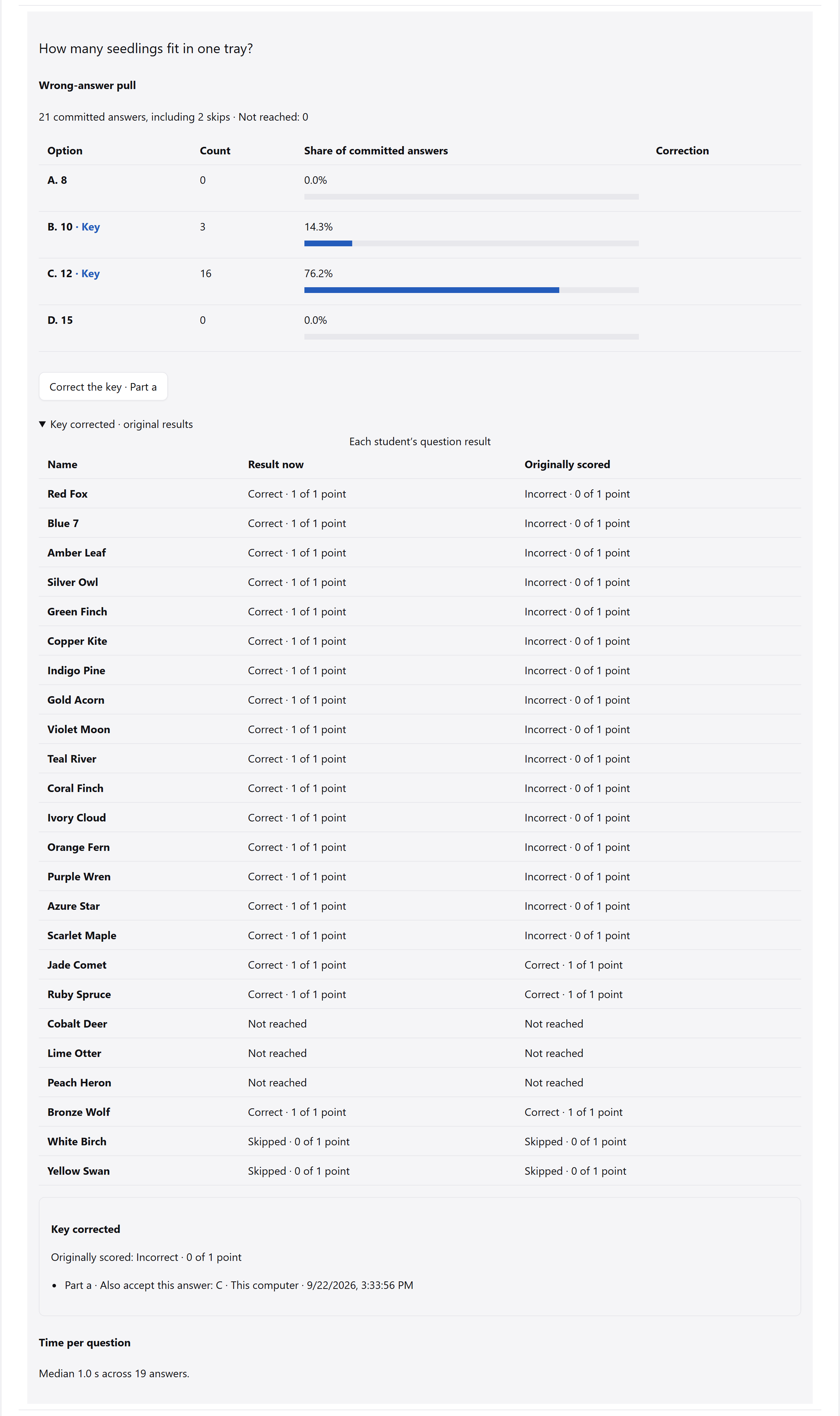
Preview the correction in Correct the key, then apply it. Original scoring and correction history remain visible, and Return to the sealed key restores that key. The sealed exam stays unchanged.
A recorded adjustment
Adjust points with a reason.
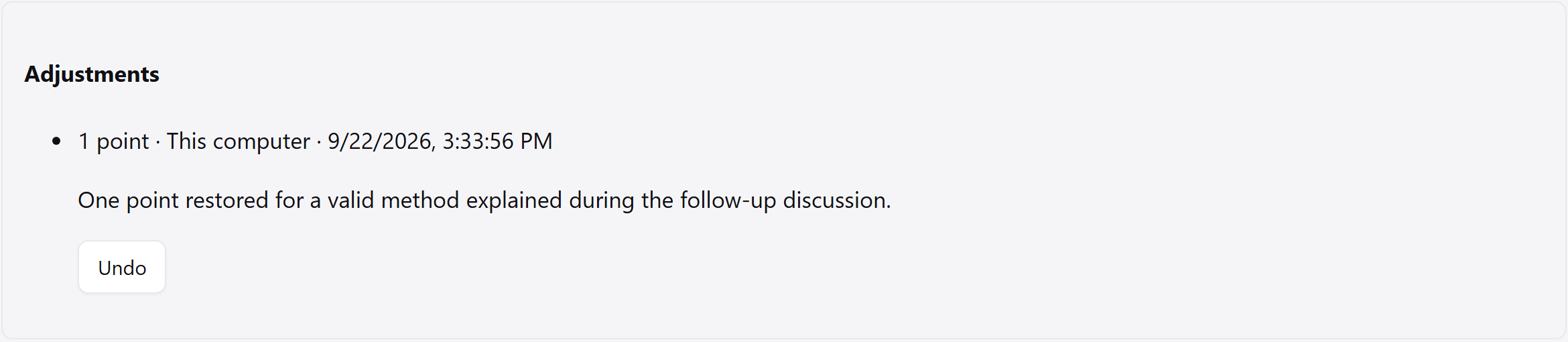
Add or take away points for one student or the class, with a reason and a preview. Use up to two decimal places. Each adjustment has its own history and can be undone while recorded answers and marks stay as they were.
Time and departures
Read the context beside the marks.
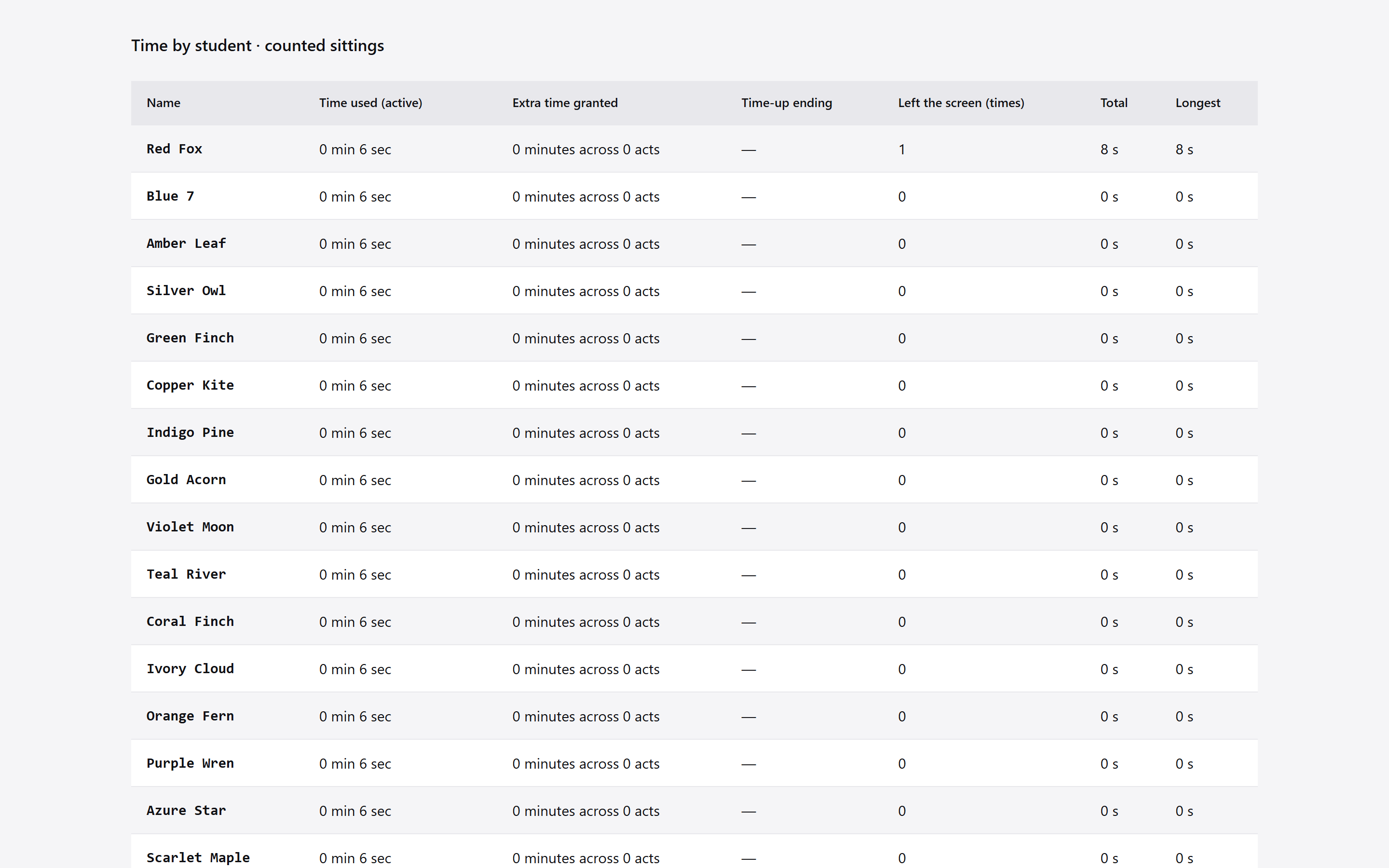
Results include time used and recorded departures from the exam page. Departures are counted, with their total time and longest duration, as observations for the teacher.
Finish with the work in view.
Read the responses, complete the written-answer marks and choose the reports or files you need.